

LockedIn AI Alternatives for Live Interview Assistance on Zoom, Google Meet, and Teams

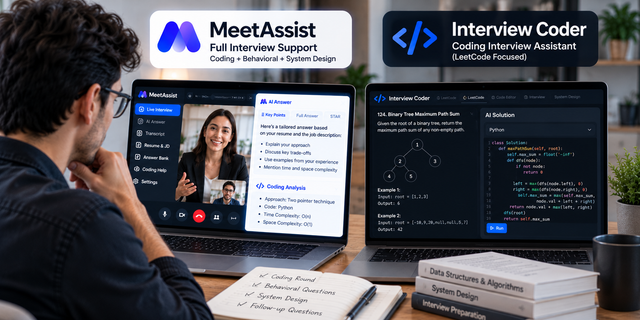
Most interview advice ignores one practical detail: where the interview actually happens. A Zoom call through the desktop client, a Google Meet link that opens in Chrome, and a Microsoft Teams panel through a company account all behave a little differently. An AI assistant for Zoom, Google Meet or Microsoft Teams interviews has to hear the interviewer clearly on whichever one you are handed, often with just a day’s notice.
LockedIn AI is a popular choice, but it is subscription based, its regular unlimited plan costs $109.98 a month, and paid sessions end after 120 minutes. If you want something simpler or cheaper, the MeetAssist AI interview assistant is a strong alternative. Its desktop app works with any call app, including Zoom, Google Meet and Teams, and its Chrome extension covers browser meetings. It costs $9 for 180 minutes or $29 for an unlimited month, with no subscription. This guide covers setup for each platform, a few other options, and how to pick the right version for your call. Details come from official websites and named sources, checked in October 2026.
What Makes a Good Live Interview Assistant
Before comparing tools, it helps to know what actually matters during a live call on any platform.
- It hears both sides clearly. The assistant needs your microphone and the interviewer’s audio, without mixing the two up.
- It works with the app you are given. You do not choose the platform. The employer does. A good tool should not force you to switch apps at the last minute.
- It does not join the meeting. No bot, no extra participant, and no notification to anyone on the call.
- It handles screen sharing sensibly. Coding rounds and portfolio reviews often mean sharing your screen, so you need to know what the other side will see.
- It answers from your material. Your resume, the job description and your own stories should shape the answers.
- It keeps up with follow-ups. Panel interviews in particular move fast, with questions coming from several people.
- It is quick to set up. Ideally a few minutes before the call, not an hour of configuration.
MeetAssist
MeetAssist is built only for live interviews. It listens to both sides of the call, notices each question as it is asked, and shows an answer built on your resume, the job description and the stories you save in its Answer Bank. It never joins your call, so there is no bot or extra participant. It comes in two main versions, and which one you use decides how setup works on each platform.
- Desktop app for Windows 10 and 11 and macOS 13 or later. It hears your microphone and all of your computer’s sound, so it works with any call app, whether the meeting runs in the native app or in a browser. It stays hidden during screen sharing and recordings.
- Chrome extension for meetings opened in Chrome. It hears your microphone and the meeting tab. It is visible if you share the tab or screen it sits on.
MeetAssist publishes separate step-by-step guides for Zoom, Google Meet and Microsoft Teams on its website. The key points from each are below.
Zoom Interviews
With the desktop app, you can join Zoom however you like, including through the Zoom desktop client. Open MeetAssist before the call, add your resume and the job description, and press Start when the interview begins. On a Mac, allow Screen Recording when asked, and System Audio Recording on macOS 14 and later. That is how the app hears the interviewer. It does not record your screen.
With the Chrome extension, Zoom needs to run in Chrome, because the extension only hears browser tabs. MeetAssist’s Zoom guide gives two ways to do this:
- Click the Zoom link, ignore the prompt to open the app, and choose “Join from your browser” at the bottom of the page. This link only appears if the host has allowed it.
- If it is missing, go to Zoom’s web client at app.zoom.us/wc/join and enter the meeting ID and password. This works regardless of the host’s settings.
Then allow microphone access when Chrome asks, click “Join Audio by Computer” in Zoom, open MeetAssist from the Chrome toolbar, set your target role, language and answer format, and start the session.
Google Meet Interviews
Google Meet already runs in the browser, which makes it the easiest platform for the Chrome extension. According to MeetAssist’s Google Meet guide, you install the extension from the Chrome Web Store, sign in with Google, join your interview at meet.google.com in desktop Chrome, then open MeetAssist from the extensions menu and press Start. The Meet mobile app is not supported, so join from your computer.
The desktop app works with Meet too, and it is the better choice if you expect to share your screen during the call.
Microsoft Teams Interviews
With the desktop app, the Teams desktop client works fine, since MeetAssist hears all of your computer’s sound.
With the Chrome extension, join Teams in Chrome instead of the desktop client. MeetAssist’s Teams guide suggests opening the meeting link and choosing “Continue on this browser,” or going to teams.microsoft.com directly. From there, click Join, open MeetAssist from the toolbar, set your target role, language and answer format, and start.
Teams interviews are often panels. MeetAssist listens to everyone on the call and responds to questions from any interviewer, so you do not need to switch anything when a different person starts asking. Setting your target role in advance helps the answers fit each interviewer’s angle.
What You Get on Every Platform
Whatever app the interview runs on, the features are the same. You can choose key points, bullets or a full answer, set the length and tone, and turn on the STAR method for behavioral questions. MeetAssist remembers the conversation, so follow-ups connect to what you already said. The Analyze feature reads coding problems on LeetCode, HackerRank or CoderPad and shows the approach, the code and the time complexity. Paid plans unlock the latest Gemini, GPT and Claude models, and MeetAssist works in 45 languages.
Sessions run on MeetAssist’s own servers in the US, Europe and India, routed to the region nearest you, with automatic failover if a region goes down. MeetAssist publishes median server response times of 35 ms in the US, 37 ms in Europe and 69 ms in India.
Pricing is one-time: 20 free minutes with no card, $9 for 180 minutes that never expire, $19 for an unlimited week, or $29 for an unlimited month. MeetAssist offers a full refund if the tool does not work for you.
Other Alternatives
Here are three more options, with only facts that could be checked.
Parakeet AI
Parakeet AI has desktop apps for Windows and Mac, a version that runs in desktop Chrome, and a mobile web version. Its site lists Zoom, Microsoft Teams, Google Meet, Webex, Lark, Amazon Chime, CoderPad and HackerRank among the platforms it checks. It uses credits: one credit costs $38 and covers two calls of up to 30 minutes, three credits cost $59, and unlimited costs $149.90 a month. Every call uses at least half a credit, even a short one.
Final Round AI
Final Round AI’s desktop app runs on Windows 10 or newer and on Apple Silicon and Intel Macs, and supports Zoom, Google Meet, Microsoft Teams and browser-based meeting tools. Its FAQ notes that capturing system audio on a Mac requires macOS 14.4 or newer. It has no free trial for live sessions, and a September 2026 report by OphyAI, citing Final Round’s plan page, put its monthly plan at $150.
Sensei AI
Sensei AI says it integrates with most video conferencing platforms, including Zoom, Microsoft Teams and Google Meet, and tailors answers using your resume, stories and job information. Its official site lists a free plan with 15 minute sessions, and Pro at $89 a month or $24 a month billed yearly.
For Reference: LockedIn AI
LockedIn AI has a desktop app for Windows 10 and 11 and macOS 13 or newer, a web app that works best in Chrome, and an iOS app. Its support center says the Android app is still in development, its Phone Interview mode runs on the web only, and Stealth Mode is desktop only on paid plans. Prices recorded from its site in MeetAssist’s published review show Unlimited General at $43.99 for the first month, then $109.98 a month.
Desktop App vs Chrome Extension: Which to Use
This choice matters more than most people realize, and it applies to MeetAssist in particular. Both versions give the same answers. The difference is how they hear the call and what happens when you share your screen.
Use the desktop app when:
- The interview runs in the native Zoom or Teams app.
- You will share your screen, for example in a coding round or portfolio review. The desktop app stays hidden on screen share and in recordings.
- You want customizable keyboard shortcuts.
- You need Analyze to read any screen, with up to 10 screenshots for long problems.
Use the Chrome extension when:
- The interview is on Google Meet, or on Zoom or Teams opened in Chrome.
- You will not share your screen.
- You are on Linux, where the desktop app is not available.
- You want a quick start with nothing to install outside the browser. The extension also tops your free minutes back up to 20 every 24 hours.
A useful middle option: Phone Mode works with both. Scan a QR code and the answers appear in your phone’s browser on iPhone or Android, with no app to install. MeetAssist’s Zoom and Teams guides suggest turning it on before you share your screen in the extension, so the panel moves off your computer and the answers go to your phone instead.
You do not need both versions. If you are unsure, start with the desktop app, which MeetAssist describes as faster and more reliable.
Comparison Table
|
Tool |
Zoom, Meet and Teams |
Desktop app |
Browser or phone option |
Starting price |
|
MeetAssist |
Yes, plus Webex and any call app (desktop) |
Windows 10/11, macOS 13+ |
Chrome extension (also Linux), Phone Mode |
$9 for 180 minutes, one-time |
|
LockedIn AI |
Yes |
Windows 10/11, macOS 13+ |
Web app, iOS app |
$43.99 first month, then $109.98 |
|
Parakeet AI |
Yes, plus Webex, Lark, Chime |
Windows, Mac |
Chrome version, mobile web |
$38 for 1 credit |
|
Final Round AI |
Yes, plus browser meetings |
Windows 10+, Mac (system audio needs macOS 14.4+) |
Web for reports and billing |
About $150 a month (reported) |
|
Sensei AI |
Yes |
Not specified on its homepage |
Not specified on its homepage |
$89 a month, or $24 a month yearly |
Choosing for Your Platform
If your interview is on Zoom: the desktop app is the simplest route, because it works with the Zoom client you probably already have. If you prefer the extension, join through Zoom’s web client in Chrome, and turn on Phone Mode before sharing your screen.
If your interview is on Google Meet: the Chrome extension is the quickest setup, since Meet already runs in Chrome. Switch to the desktop app if you will share your screen.
If your interview is on Microsoft Teams: use the desktop app with the Teams client, or join Teams in Chrome with the extension. For panel interviews, set your target role before the call so answers fit each interviewer’s questions.
If you do not know the platform yet: install the desktop app. It covers all three, plus Webex and others, without any changes on your side.
Whichever tool and platform you end up with, do a test call first. Ask a friend to join on the same app, play the interviewer, and check that the assistant hears both of you, that answers appear in time, and that nothing shows up on a shared screen that you did not expect. MeetAssist’s free 20 minutes are enough for this.
Finally, some employers, schools and assessment platforms do not allow AI help during interviews. Check the rules before your call and follow them.
Frequently Asked Questions
What is the best AI assistant for Zoom interviews?
It depends on how you join. MeetAssist’s desktop app works with the Zoom desktop client and stays hidden on screen share, while its Chrome extension works when Zoom runs in Chrome through the web client. It costs $9 for 180 minutes, with no subscription.
Does MeetAssist work with the Microsoft Teams desktop app?
Yes, through the MeetAssist desktop app, which hears all of your computer’s sound. The Chrome extension needs Teams to be opened in Chrome instead.
Can I use MeetAssist on Google Meet?
Yes. Install the Chrome extension, join at meet.google.com in desktop Chrome, and press Start. The desktop app also works with Meet and is better if you will share your screen.
Should I use the MeetAssist desktop app or the Chrome extension?
Use the desktop app if you can, especially if you will share your screen or use the native Zoom or Teams app. Use the extension for quick browser meetings without screen sharing, or on Linux.
Is MeetAssist cheaper than LockedIn AI?
Yes. MeetAssist costs $29 for an unlimited month as a one-time payment, against $109.98 a month for LockedIn AI’s Unlimited General plan after the first month.
Anyone can join.
Anyone can contribute.
Anyone can become informed about their world.
"United We Stand" Click Here To Create Your Personal Citizen Journalist Account Today, Be Sure To Invite Your Friends.
Before It’s News® is a community of individuals who report on what’s going on around them, from all around the world. Anyone can join. Anyone can contribute. Anyone can become informed about their world. "United We Stand" Click Here To Create Your Personal Citizen Journalist Account Today, Be Sure To Invite Your Friends.
LION'S MANE PRODUCT
Try Our Lion’s Mane WHOLE MIND Nootropic Blend 60 Capsules
Mushrooms are having a moment. One fabulous fungus in particular, lion’s mane, may help improve memory, depression and anxiety symptoms. They are also an excellent source of nutrients that show promise as a therapy for dementia, and other neurodegenerative diseases. If you’re living with anxiety or depression, you may be curious about all the therapy options out there — including the natural ones.Our Lion’s Mane WHOLE MIND Nootropic Blend has been formulated to utilize the potency of Lion’s mane but also include the benefits of four other Highly Beneficial Mushrooms. Synergistically, they work together to Build your health through improving cognitive function and immunity regardless of your age. Our Nootropic not only improves your Cognitive Function and Activates your Immune System, but it benefits growth of Essential Gut Flora, further enhancing your Vitality.

Our Formula includes: Lion’s Mane Mushrooms which Increase Brain Power through nerve growth, lessen anxiety, reduce depression, and improve concentration. Its an excellent adaptogen, promotes sleep and improves immunity. Shiitake Mushrooms which Fight cancer cells and infectious disease, boost the immune system, promotes brain function, and serves as a source of B vitamins. Maitake Mushrooms which regulate blood sugar levels of diabetics, reduce hypertension and boosts the immune system. Reishi Mushrooms which Fight inflammation, liver disease, fatigue, tumor growth and cancer. They Improve skin disorders and soothes digestive problems, stomach ulcers and leaky gut syndrome. Chaga Mushrooms which have anti-aging effects, boost immune function, improve stamina and athletic performance, even act as a natural aphrodisiac, fighting diabetes and improving liver function. Try Our Lion’s Mane WHOLE MIND Nootropic Blend 60 Capsules Today. Be 100% Satisfied or Receive a Full Money Back Guarantee. Order Yours Today by Following This Link.


| Visits: | 1,835,681,055 |
| Stories: | 8,725,300 |
Whistler Blowers, Insiders

