

Maximizing Your iPhone: Customizing Habit Tracker Widgets for Enhanced Productivity

Maximizing Your iPhone: Customizing Habit Tracker Widgets for Enhanced Productivity
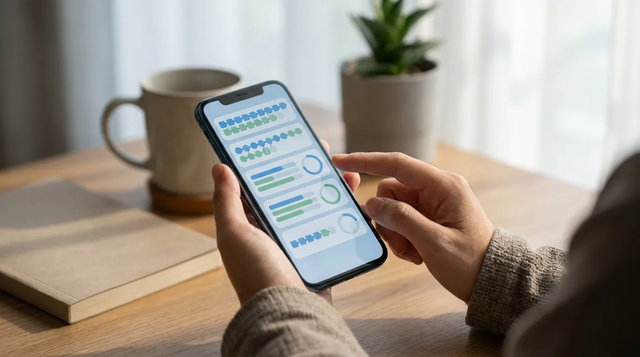
TL;DR: Busy day? Set your iPhone habits to work at a glance.
Keep 1 to 3 priority habits on the Home Screen so you see them and can log them fast. Put passive reminders on the Lock Screen. Use Smart Stacks only for secondary routines—never hide mission-critical habits there. Group prompts by moment, like morning or evening. Match widget size to attention level. Use Apple Health for automatic logging when you can. Do a quick weekly reset. Remove any widget that’s turned into wallpaper.
Your iPhone can feel like a distraction machine or one of the easiest productivity tools you own. A lot comes down to what you see first. If your Home Screen is packed with apps that pull your attention somewhere else, the habits you want to build get shoved onto later pages. They’re just too easy to ignore. But when widgets put those repeat actions front and center, your phone starts helping your day instead of getting in the way. That’s where habit tracker customization can make a real difference.
That’s why habit tracker customization matters. Great widgets do more than just look good. They reduce friction, make your progress easier to see, and can make daily check-ins feel almost automatic, which honestly helps. That’s what makes them truly useful, I think.
On iPhone, that matters even more now because iOS widgets appear on the Home Screen, the Lock Screen, and in Smart Stacks too. You’ve got a few simple ways to support better routines without having to open apps all the time, and that’s probably the best part. That kind of convenience can often make a real difference pretty quickly.
If you already read this broader guide to choosing a simple iPhone habit tracker, this article takes the next step by showing how to set up your widgets so they really improve consistency. It covers the best widget setups for different routines, how to use iOS widgets without making your screen feel crowded, which probably matters more here than it seems at first, and the mistakes that can make habit tracking work less well. You’ll also find practical habit-tracking strategies that, I think, help turn visibility into real follow-through, so the next step feels clear the moment you unlock your phone.
Why widgets change behavior more than most people realize in habit tracker customization
A lot of productivity advice focuses on motivation, but widgets help with something different: access. If a habit is easy to see and easy to do, people are much more likely to stick with it. That’s really what this comes down to. Apple’s widget system is built for glanceable information, which makes it especially useful for routines that depend on repetition, as most habits do.
That matches what behavior research has shown for years. In one widely cited habit-formation study, 96 participants were tracked for 84 days. Habits usually become more automatic through repeated actions over time, not from one quick burst of motivation. They often build step by step, which is honestly a more realistic way for it to happen. Widgets help by making those repetitions easier to fit into small, low-effort moments you might otherwise miss.
For iPhone users, the biggest productivity gains usually come from a couple of practical things, in my view:
- Visibility: the next action stays right on the Home Screen or Lock Screen
- Reduced friction: there are fewer taps between intention and action
- Self-monitoring: streaks or progress are easy to spot at a glance
- Speed: checking in and continuing takes less effort
That also explains why modern habit apps keep using interactive widgets, Lock Screen progress, and quick logging. In many cases, the phone removes more of the need to open an app, look around, or pause to think. Less searching, less delay, and it often gets easier to keep daily habits going.
When people talk about iPhone productivity tips, they usually go straight to focus modes or notification settings. Those can help. But widgets feel more direct. They put the behavior itself on the screen people already check all day, where attention usually goes first.
Build your widget setup around moments, not just habits
One of the most common habit tracker customization mistakes is grouping widgets by category instead of by context, and it happens a lot. Most people don’t need a screen packed with every good habit they might want one day, especially the ones they probably won’t use. What usually works better is the right prompt at the right time: in the morning, during work, before bed, or when they’re heading out.
A better widget setup starts by splitting the day into the moments that really matter. It’s pretty simple, honestly, and that’s often the key. Even then, people tend to miss it.
Morning cues for habit tracker customization
A Home Screen widget can work well for habits you want to do soon after you wake up, such as:
- Drinking water
- Stretching or taking medication
- Reviewing your top priority
For these, bigger widgets work best, since they need to stand out on your first screen, where you’ll likely notice them right away. If you check your phone early, make that first screen support your first routine before anything else grabs your attention.
Workday cues
During the day, smaller widgets usually make more sense, at least in most setups. A compact habit tracker can give gentle reminders for things like:
- Standing up every hour
- Logging a focused work block
- Putting the phone down for a while
- Doing a quick inbox reset
Smart Stacks are really useful here. Apple lets users stack up to 10 widgets, which helps when a few productivity tools are needed without making the layout feel cluttered, since that is often the real issue. The stack can also rotate by time, activity, or location, so habit prompts show up when someone’s at work, on the move, or just getting somewhere.
Evening cues for habit tracker customization
The Lock Screen works really well for passive reminders later in the day. A small progress widget can give a gentle nudge to finish unfinished habits before bed, which is often when that kind of prompt helps most, without pushing anyone into opening the full app. That’s really handy.
Evening widgets work really well for low-energy routines like reading, skincare, planning tomorrow, or cutting back on late-night snacking. A simple way to use them is to place habits where they naturally fit into your evening, like on the Lock Screen before bed, so the reminder feels easy.
Choosing the right widget type for each habit
Not every habit needs the same widget size or the same spot on your home screen, and that’s totally normal. If everything looks the same, nothing really stands out. Habit tracking usually works better when the widget format fits the specific behavior. In most cases, that’s the simple part.
Use Home Screen widgets for active completion.
Home screen widgets are usually most useful for habits you want to finish on purpose. These are the high-value actions you really plan to do, often just one or two at a time. If the app supports one-tap logging, that makes it even easier, which is pretty handy. Interactive widgets also make it faster to go from seeing the habit on your home screen to marking it done.
Large or medium widgets often work well for:
- Daily movement
- Writing
- Study sessions
- Deep work blocks
- Meditation
Use Lock Screen widgets for passive awareness
Lock screen widgets usually work best when they’re easy to notice, not packed with too much info. Small and quick to scan is often the sweet spot here. Apple supports inline, circular, rectangular, and yes-or-no reminder styles on the Lock Screen, so keeping them simple makes them easier to read at a glance. A good habit widget should quickly answer one question: “What still matters today?”
Use them for:
- Streak status
- Remaining habits for today
- Water or step progress
- A simple yes-or-no habit reminder, which you’ll probably notice faster
Use Smart Stacks to reduce clutter in habit tracker customization
Smart Stacks work well when someone wants flexibility without filling every screen with separate tiles, which can start to feel messy pretty fast. They’re especially helpful when the day changes based on the time or location. A morning routine widget can show up first, then a work tracker later, and eventually an evening review.
There is a catch, though. The most important habit can end up hidden inside a stack that never gets swiped, and that happens more often than people expect. If a habit is truly mission-critical, it should not be hidden there. Keep it pinned on the Home Screen, where it is visible the moment the phone is unlocked.
Apps such as Everyday fit this approach nicely because a simple visual tracker is quick to check and usually easier to maintain across devices. That kind of simplicity often matters more than people expect, especially when the real goal is staying consistent.
What a productive iPhone habit layout actually looks like
A productive iPhone layout usually isn’t really about looks. It’s more about how it nudges your choices, which is probably the main part here. You want your screen to quietly guide you toward the next action. Pretty simple, really.
Here’s a practical model that often works well for lots of people, and in most cases it’s easy to use.
Screen 1: Your action screen
This is usually the first page you see, so it helps to keep it clear and focused.
Include:
- A medium habit tracker widget for your main daily habits
- Your calendar, or maybe a top task widget
- Just the essential apps underneath, not the extra ones
So this screen really answers one question: what do you need to do today?
Screen 2: Your support screen
This screen usually supports your workflow without interrupting your routine, which is likely the point, so it often stays off the main screen.
Use it for helpful but secondary tools: things you still use, just not all the time.
Include:
- A Smart Stack with health, movement, focus, meal-related widgets, or similar tools
- Timer or notes widgets
- Probably fewer entertainment apps than you may think you want
Lock Screen: Your accountability layer in habit tracker customization
Keep one small habit widget here, not five, just one. The idea is a quick reminder, not a crowded lock screen, because that’s usually the whole point.
A lot of people mess up their own widget setup by trying to track ten habits at once. Simple tools often work better here, since they keep attention on the action worth repeating instead of pulling people into endless system tweaking, which can happen fast. If someone is building a new routine, it often helps to start with one or two habits and let the layout reflect that same restraint.
Advanced customization tips that make widgets more useful
Once the basics are set, a couple of advanced tweaks can make iOS widgets feel a lot more useful and, honestly, more personal. Small changes often help and can make a real difference.
Pair widgets with Apple Health when possible
If a habit can be logged automatically through Apple Health, it’s usually worth choosing that. Manual tracking fatigue is real, probably more than you’d think. Steps, workouts, sleep, and a few wellness metrics are often easier to keep up with when the phone handles part of the logging.
Match widget size to attention level in habit tracker customization
Use bigger widgets for habits you’re actively building. Once a habit starts to feel steady, you can shrink it or tuck it into a stack, which often helps. It’s a small shift, but it keeps your layout matching what you’re focused on right now.
Refresh by season, not every day
A lot of people tweak their setup too much, and that usually just adds more friction. A better rule is to check widgets each week, then only redesign them when a routine has really changed.
Separate building habits from breaking habits
For positive habits, keep cues easy to notice. But with habits someone wants to cut back on, like using social media too much, it usually helps to do the opposite: move the trigger apps off the home screen and place a widget for a replacement habit nearby, since that really can help.
It’s not just decoration. This is where widget setup becomes part of behavior change, because it changes what shows up first and what someone tends to tap instead, which often matters in real life.
A simple weekly system for keeping your widget setup useful
The best setup is usually the one that fits into real life without becoming another thing to manage. For most people, a short weekly review is enough, and that’s often what keeps the whole setup useful. Nothing complicated.
Once a week, try this five-step reset:
- Notice which habits you actually used your widgets for
- Remove any widget that has turned into visual wallpaper
- Bring one habit forward if it seems like it needs more visibility next week
- Scale back stable habits into smaller widgets or stacks
- Make sure your first screen still matches your real priorities on your phone
The reason this helps is pretty simple: tools tend to drift over time. A layout that worked during a busy month may not make as much sense in a quieter stretch, and that’s completely normal. Habit tracking strategies usually need some flexibility if they’re going to keep working in everyday life. In most cases, staying on track just means checking in regularly and adjusting what shows up first.
A recent 60-day comparison study with 100 participants looked at AI-driven and conventional habit tracking tools, which is a useful reminder that this area is still changing. Even so, the core idea does not really change. When the next action is visible and easy to reach, adherence often improves. It’s simple, but in this context still important.
For people who want a clean, cross-platform option, Everyday is often a practical fit. Its visual streak approach stays easy to read on mobile, and it also syncs with web and browser use, which is genuinely helpful. That can make it easier to keep the same habits visible beyond the phone itself.
Frequently Asked Questions
What is the best widget setup for habit tracking on iPhone?
For most people, the best widget setup includes one main Home Screen habit widget, one small Lock Screen progress widget, and an optional Smart Stack for secondary routines. Keep your most important one to three habits visible and avoid spreading attention across too many screens.
Should I use Home Screen or Lock Screen widgets for habits?
Use Home Screen widgets for habits you want to actively complete and log. Use Lock Screen widgets for quick reminders, streak visibility, or passive progress checks throughout the day.
How many habits should I put in a widget?
Usually fewer than you think. One to three habits is ideal for a main widget because it keeps the display readable and the action clear. If you add too many, the widget becomes background noise instead of a useful cue.
Are Smart Stacks good for productivity, or do they hide habits?
They can do both. Smart Stacks are great for saving space and surfacing context-based widgets, but they are not the best home for your most important daily habit. Use them for supporting routines, not for the one behavior you cannot afford to forget.
Can a minimalist habit app work better with widgets?
Yes, often it can. Minimalist tools reduce the amount of thinking required to check progress and log completion, which makes widgets more effective. Everyday is a good example of this approach because the visual streak view is quick to understand and works well when you want daily consistency without a busy interface.
Do widgets really help with building habits, or are they just convenient?
They help because convenience changes behavior. When a habit is visible and easy to act on, you remove small points of resistance that usually lead to procrastination. That does not replace good planning, but it makes follow-through much more likely.
Put your iPhone to work for your routines
The best productivity systems usually aren’t the most complicated. More often, they’re the ones that make the next useful action feel obvious. That’s a big reason habit tracker customization works so well. With the right iOS widgets, your phone becomes less of a place where intentions drift off and more of a practical reminder to act, which is often what helps most.
If only a couple of ideas stick, keep your most important habits visible and match widget placement to the time of day when it’s actually useful. A morning habit can live on the first Home Screen, while an evening one may work better on a later screen or inside a Smart Stack. Smart Stacks also help save space without pushing priorities out of view, and a quick weekly check will usually tell you whether the setup still works for your routine. It’s simple, but effective. Good habit tracking strategies aren’t about covering your screen with motivation. They’re about removing enough friction that consistency feels easier in real life.
Why not start small? Put one meaningful habit on your first screen today. If that makes it easier to follow through a little more often, then the widget setup is doing its job. Over time, those repeated check-ins can turn good intentions into a routine you can actually keep. Small shifts often matter here.
Anyone can join.
Anyone can contribute.
Anyone can become informed about their world.
"United We Stand" Click Here To Create Your Personal Citizen Journalist Account Today, Be Sure To Invite Your Friends.
Before It’s News® is a community of individuals who report on what’s going on around them, from all around the world. Anyone can join. Anyone can contribute. Anyone can become informed about their world. "United We Stand" Click Here To Create Your Personal Citizen Journalist Account Today, Be Sure To Invite Your Friends.
LION'S MANE PRODUCT
Try Our Lion’s Mane WHOLE MIND Nootropic Blend 60 Capsules
Mushrooms are having a moment. One fabulous fungus in particular, lion’s mane, may help improve memory, depression and anxiety symptoms. They are also an excellent source of nutrients that show promise as a therapy for dementia, and other neurodegenerative diseases. If you’re living with anxiety or depression, you may be curious about all the therapy options out there — including the natural ones.Our Lion’s Mane WHOLE MIND Nootropic Blend has been formulated to utilize the potency of Lion’s mane but also include the benefits of four other Highly Beneficial Mushrooms. Synergistically, they work together to Build your health through improving cognitive function and immunity regardless of your age. Our Nootropic not only improves your Cognitive Function and Activates your Immune System, but it benefits growth of Essential Gut Flora, further enhancing your Vitality.
Our Formula includes: Lion’s Mane Mushrooms which Increase Brain Power through nerve growth, lessen anxiety, reduce depression, and improve concentration. Its an excellent adaptogen, promotes sleep and improves immunity. Shiitake Mushrooms which Fight cancer cells and infectious disease, boost the immune system, promotes brain function, and serves as a source of B vitamins. Maitake Mushrooms which regulate blood sugar levels of diabetics, reduce hypertension and boosts the immune system. Reishi Mushrooms which Fight inflammation, liver disease, fatigue, tumor growth and cancer. They Improve skin disorders and soothes digestive problems, stomach ulcers and leaky gut syndrome. Chaga Mushrooms which have anti-aging effects, boost immune function, improve stamina and athletic performance, even act as a natural aphrodisiac, fighting diabetes and improving liver function. Try Our Lion’s Mane WHOLE MIND Nootropic Blend 60 Capsules Today. Be 100% Satisfied or Receive a Full Money Back Guarantee. Order Yours Today by Following This Link.


| Visits: | 1,834,367,266 |
| Stories: | 8,717,962 |
Whistler Blowers, Insiders

